Try the sample
Use the bundled habit tracker sample to make three 1080×1920 screenshots titled Build Better Habits, Track Every Day, and See Your Progress. Use blue, purple, and mint backgrounds. Show the preview and give me the PNG ZIP.
Turn your app captures into App Store and Google Play artwork. Add headlines, backgrounds, and device frames in a conversation, then download the full-resolution PNGs in one ZIP.
Bring your app captures, describe the look you want, and download the rendered PNGs together in a ZIP.
Install in ChatGPTUse the public directory link above. Older personal or manually uploaded plugins can have the same name.
The archive is for advanced setup. It can contain changes still awaiting public review.
Download developer ZIP · SHA-256https://listingframe.benbaler.workers.dev/mcp
These three images were rendered through the public App Listing Screenshots plugin using the bundled habit tracker sample. The original PNGs are 1080×1920; the website previews are resized for display.
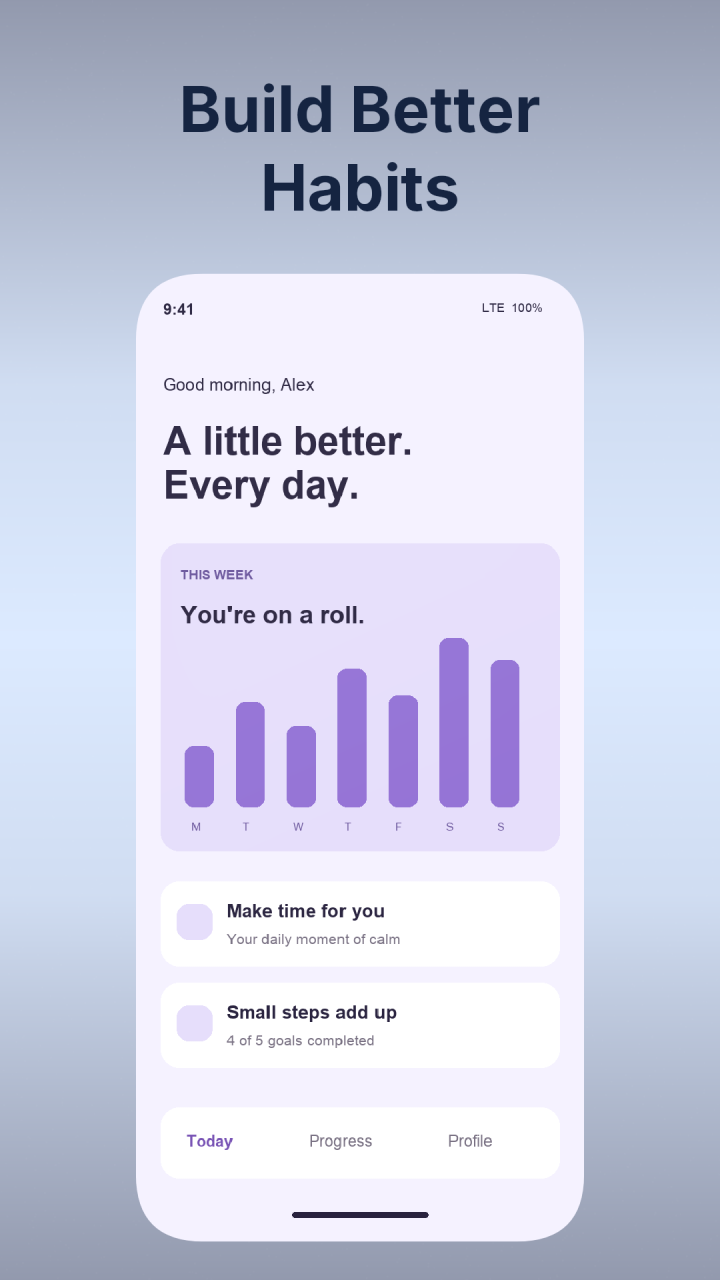
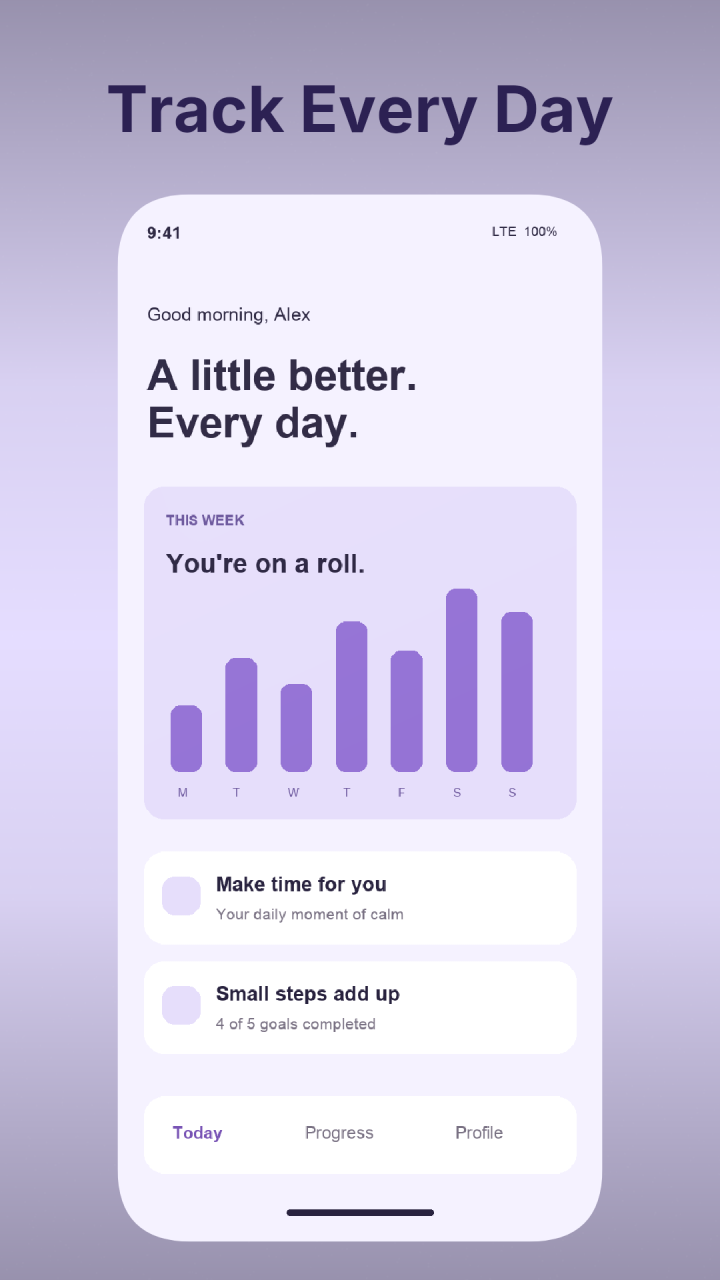
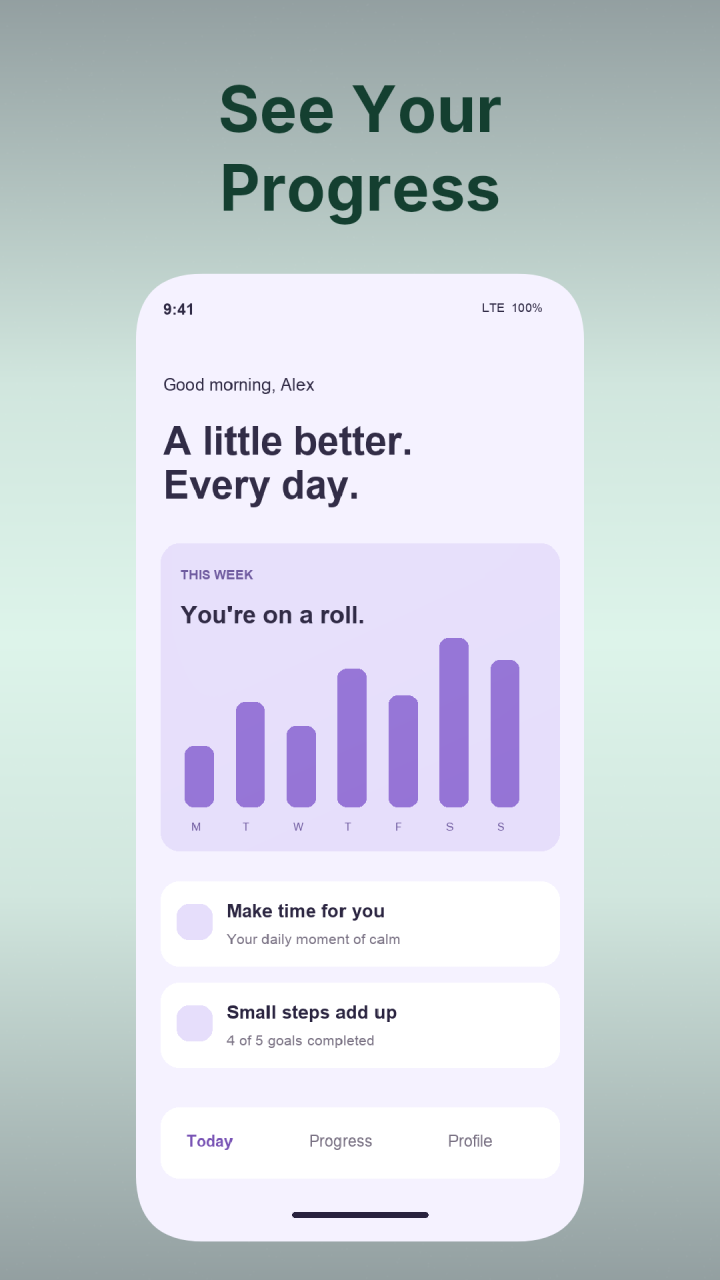
A 30-second recording of the preview and enlargement controls in the public ChatGPT plugin, using the bundled sample. This clip shows an already completed export.
Install from the public directory, start a new chat and select App Listing Screenshots before sending your request. Availability can depend on your ChatGPT account and client.
If a preview fails to load, the returned PNG and ZIP links can still work. Ask for the original PNG links and report the issue through Support.
ChatGPT and Codex share the public plugin directory. In the ChatGPT desktop app, open Plugins, find App Listing Screenshots by Ben Baler, and install the public version. Start a new Codex session to use its Skill and tools.
In Codex CLI, open /plugins to browse the plugins available to that environment. The Codex IDE extension does not currently support plugins.
Claude communicates with App Listing Screenshots via the Model Context Protocol (MCP). You can configure Claude Desktop on macOS or Windows, or connect through Claude Code.
“Check screenshot options with list_screenshot_options, then create two 1242×2688 iPhone screenshots with dark indigo backgrounds and bold benefit headlines. Export the series and share the download link.”
The plugin exposes 4 remote tools to connected agents:
| Tool | Description | Parameters |
|---|---|---|
list_screenshot_options | Lists supported canvas resolutions (App Store, Google Play), font families, colors, and layout presets. | None |
create_screenshot_series | Creates an ordered slide series with headlines, frame finishes, and backgrounds from uploaded files, data URLs, or sample captures. | name, design, slides, files / sources |
update_screenshot_series | Updates design fields (titles, colors, fonts) on selected slides while retaining existing captures. | seriesId, slides |
export_screenshot_series | Renders full-resolution PNGs via Skia WASM, returns image blocks, and generates persistent signed PNG and ZIP links. | seriesId |
No. Renders performed through the remote MCP plugin are free. The plugin connects via automatic anonymous OAuth without requiring a website account, credit pack, or subscription.
No. All rendering, CanvasKit/Skia processing, and ZIP archiving take place on our dedicated Cloudflare Worker. Neither your local machine nor the AI host needs image manipulation libraries.
New series PNGs and ZIP archives are retained on Cloudflare R2 until a deletion request. Their signed links have no automatic expiry. If an older link has expired, ask the agent to export the series again.
No. The plugin generates PNG image files and ZIP archives for you to review and upload to App Store Connect or Google Play Console yourself.